Photo-to-Painting Tool Finder
Not sure which tool is right for you? Answer a few questions about your project, and we'll recommend the best free option.
Recommended Tools
Pro Tip
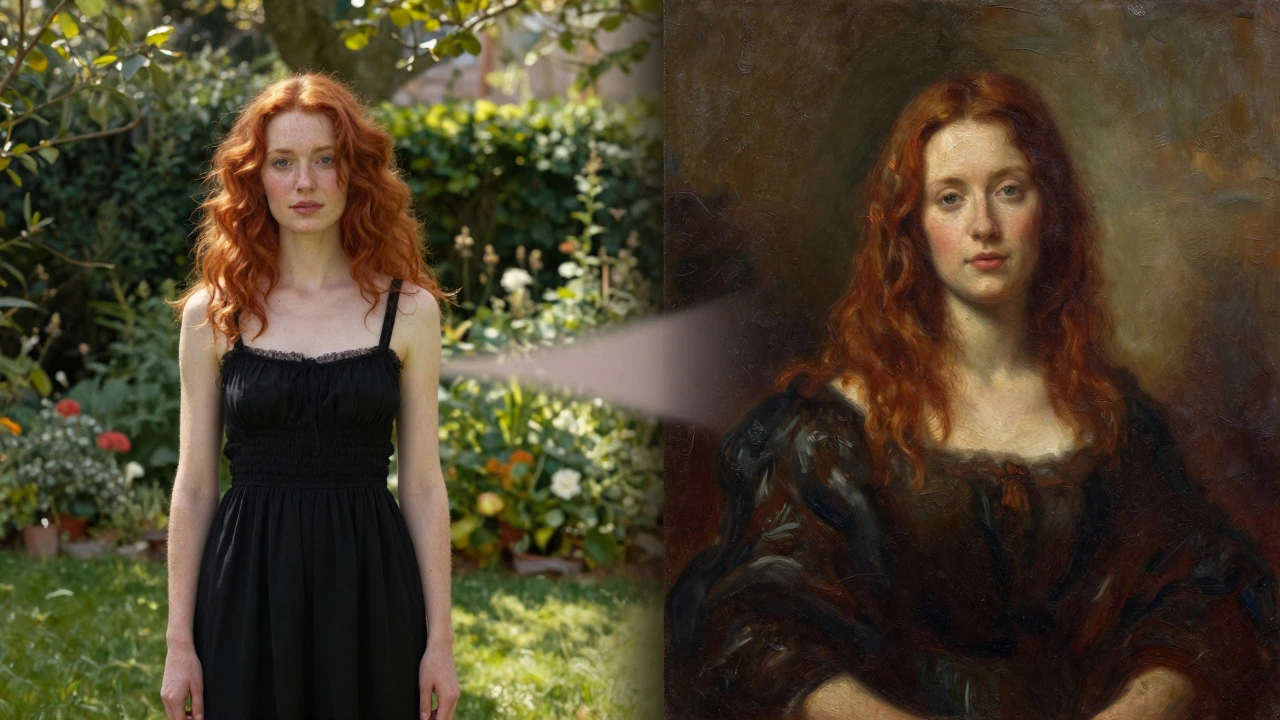
Ever stared at a family photo and wished it looked like an oil masterpiece? You are not alone. The desire to transform a standard snapshot into something that looks like portrait painting is huge right now. But here is the catch: most software that does this well costs money. So, how do you get that gallery-quality look without spending a dime?
The good news is that technology has caught up with our wallets. Between free tiers of powerful AI platforms and open-source software, you can turn any JPEG into a stunning piece of art today. Whether you want a watercolor effect for a landscape or a classical oil style for a headshot, the tools are available. Let’s walk through exactly how to do it, step by step.
Understanding the Magic Behind the Style Transfer
Before we jump into the tools, it helps to know what is actually happening under the hood. When you convert a photo to a painting, you are using a process called neural style transfer. This technique uses deep learning algorithms that separate the content of one image from the style of another.
Think of it like this: your photo provides the "what" (the shapes, faces, and objects), while the reference painting provides the "how" (the brushstrokes, color palette, and texture). The AI blends these two inputs to create a new image that retains the structure of your photo but adopts the artistic flair of the painting. This is why the results can look so authentic compared to old-school Photoshop filters, which often just slapped a grainy texture over a picture.
Top Free Online Tools for Instant Results
If you want speed and simplicity, browser-based tools are your best friend. You do not need to install anything. Just upload, choose a style, and download. Here are the top contenders that offer genuine free access as of mid-2026.
| Tool Name | Best For | Free Tier Limits | Ease of Use |
|---|---|---|---|
| Bing Image Creator | AI-generated reinterpretations | Daily boosts (fast generations) | Very Easy |
| Fotor | One-click artistic filters | Limited exports per day | Easy |
| Deep Dream Generator | Complex neural styles | Credits system (slow refill) | Moderate |
| Photopea | Manual editing & filters | Completely free (ads supported) | Hard (requires skill) |
Bing Image Creator (Powered by DALL-E 3)
This is arguably the most powerful free tool available right now. While it is primarily an image generator, you can use it to recreate your photo in a painted style. Upload your photo as a reference (if the interface allows) or describe it in detail along with the desired art style. For example, type: "An oil painting of a woman with red hair standing in a garden, style of Rembrandt." The AI will generate a new image that captures the essence of your description. It is not a direct pixel-by-pixel conversion, but the artistic quality is unmatched.
Fotor GoArt
Fotor offers a dedicated "GoArt" feature. It has dozens of pre-set styles ranging from Van Gogh’s Starry Night to modern pop art. The free version lets you apply these styles instantly. The downside? You might hit a daily limit on high-resolution downloads. For social media posts, however, the resolution is usually sufficient.
Deep Dream Generator
If you want true neural style transfer, this is the classic choice. You upload your content image and then either pick a style from their library or upload your own reference painting. The free tier gives you a small number of credits each day. It takes a few minutes to process, but the result is a seamless blend of your photo and the chosen artistic style.
Open Source Software for Unlimited Control
If you have a decent computer and do not mind installing software, open-source options give you unlimited, completely free usage. No credits, no watermarks, no limits.
GIMP with Plugins
GIMP is a free and open-source raster graphics editor similar to Photoshop. By itself, GIMP has some basic filters like "Oil Paint" or "Cubism." However, the real power comes from plugins. You can install community-made scripts that mimic specific painting techniques. For instance, the "Paint Lab" plugin adds advanced artistic effects. It requires a bit of tweaking-adjusting brush size, contrast, and saturation-but you get total control over every stroke.
Krita
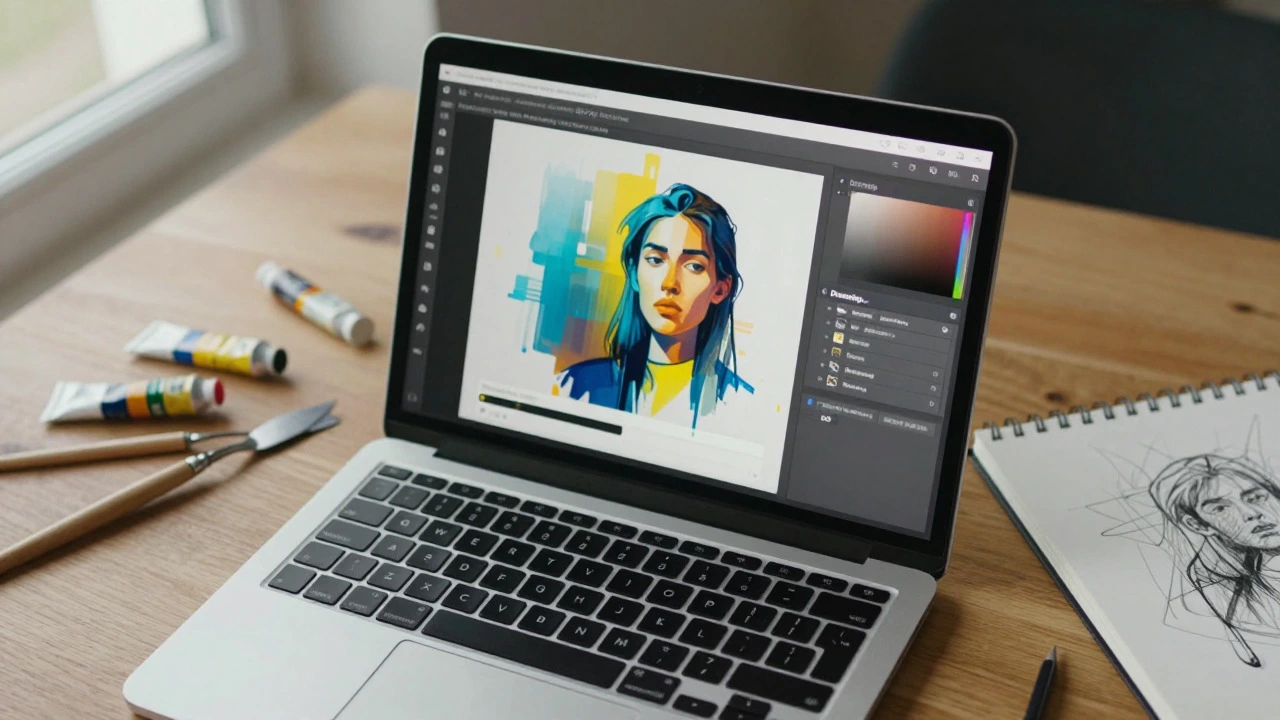
Krita is a professional-grade digital painting application designed for concept artists and illustrators. While Krita is meant for creating art from scratch, it has excellent features for importing photos and tracing or painting over them. You can lower the opacity of your photo layer, place a new canvas above it, and manually paint over the image using Krita’s vast library of realistic brushes. This method is slower but produces the most authentic-looking results because a human hand guides the process.
Step-by-Step Guide: Using Deep Dream Generator
Let’s walk through a concrete example using Deep Dream Generator, as it strikes a great balance between ease of use and quality.
- Create an Account: Sign up for free. You will start with a handful of credits.
- Select 'Style Transfer': On the dashboard, choose the Style Transfer option rather than Text-to-Image.
- Upload Your Content: Click "Choose File" and upload your photo. Make sure it is clear and well-lit. Blurry photos often result in muddy paintings.
- Choose a Style: Browse the style gallery. For portraits, look for styles labeled "Oil," "Classical," or "Impressionist." If you have a specific painting in mind, upload it as a custom style.
- Adjust Settings: Keep the default settings for now. If the result looks too distorted, lower the "Style Strength" slider. If it looks too much like the original photo, raise it.
- Generate: Click "Dream." Wait for the processing to complete. This may take a minute or two.
- Download: Once done, preview the image. If you like it, click download. Note that free users may get a lower-resolution file or a watermark depending on current policy.
Tips for Better Results
Not every photo converts well. Here is how to ensure your final image looks like a genuine painting and not a glitchy mess.
- Lighting Matters: Photos with strong, directional lighting (like golden hour sunlight) translate better to oil painting styles. Flat, evenly lit photos can look dull when stylized.
- Simplify the Composition: Busy backgrounds with lots of small details can confuse the AI. A portrait with a blurred background works best. The AI focuses on the main subject and applies the style more cohesively.
- High Resolution Input: Always upload the highest quality version of your photo. Upscaling a tiny thumbnail will result in a pixelated painting.
- Post-Processing: Even after AI generation, the colors might be off. Use a free tool like Canva or Photopea to adjust the brightness, contrast, and saturation. Adding a subtle vignette can also enhance the "framed artwork" feel.
Common Pitfalls to Avoid
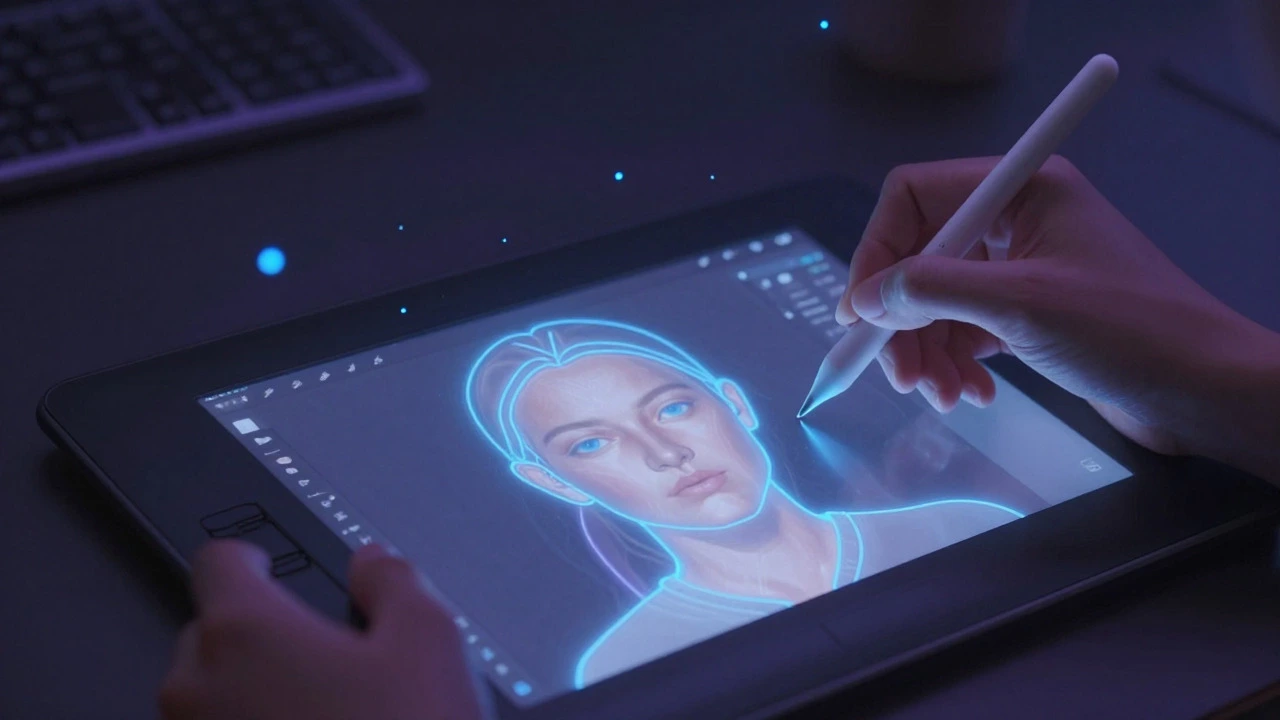
One common mistake is expecting the AI to understand context perfectly. If you upload a photo of a cat and ask for a "watercolor style," the AI might make the cat look like a blob of color. To fix this, try adding keywords like "detailed fur" or "realistic anatomy" if the tool allows text prompts. Another pitfall is over-stylizing. Sometimes, less is more. A light touch of style preserves the recognizability of the subject, which is crucial for portraits.
Next Steps and Troubleshooting
If your first attempt fails, do not give up. Try a different tool. Bing Image Creator might handle the composition better, while Fotor might offer a quicker fix. If you are aiming for professional results, consider combining methods: use AI to generate a base painting, then import it into Krita to manually refine the eyes and hands, which are often the hardest parts for AI to get right.
Remember, the goal is not just to apply a filter but to evoke emotion. Choose a style that matches the mood of your photo. A joyful family snapshot pairs well with bright impressionist styles, while a solemn portrait might suit darker, baroque-inspired tones.
Is there a completely free app with no limits?
Yes, desktop software like GIMP and Krita are completely free and open-source. They do not have credit systems or daily limits. However, they require more manual effort than online AI tools.
Can I turn a photo into a painting on my phone?
Absolutely. Apps like Prisma, PicsArt, and the mobile versions of Fotor and Canva allow you to apply artistic filters directly on your smartphone. Most operate on a freemium model, offering basic styles for free.
Which style looks most like a real oil painting?
Styles based on classical masters like Rembrandt, Caravaggio, or Vermeer tend to produce the most realistic oil painting effects. Look for terms like "Baroque," "Renaissance," or "Oil Canvas" in style galleries.
Why does my face look distorted in the AI painting?
AI sometimes struggles with facial features, especially eyes and teeth. To mitigate this, try lowering the "style strength" setting or use a tool that allows you to mask certain areas. Alternatively, manually retouch the face in a program like Krita.
Can I sell the paintings created from my photos?
It depends on the tool's license agreement. Many free tiers restrict commercial use. Always check the Terms of Service. For commercial projects, consider upgrading to a paid plan or using open-source tools where you retain full rights.