Digital Art Device Finder
Answer these questions to find the perfect device for your creative style.
Based on your inputs, here are the top matches ranked by suitability.
Standalone Tablet
(iPad Pro / Galaxy Tab)
Match: --%
- ✓ All-in-one convenience
- ✗ Limited desktop software access
Pen Display
(Wacom Cintiq / XP-Pen)
Match: --%
- ✓ Full desktop software integration
- ✗ Tied to desk/cables
Non-Screen Tablet
(Wacom Intuos)
Match: --%
- ✓ Best ergonomics & lowest cost
- ✗ Steep hand-eye coordination curve
Fill out the form to see your personalized device recommendations.
You’ve got the vision. You know exactly how the lighting should hit that character’s cheekbone or how the texture of the moss should feel underfoot. But then you sit down, stare at your mouse cursor, and realize you’re trying to paint with a computer pointer. It feels like writing cursive with chopsticks. The right digital art device is the bridge between your brain and the canvas, but choosing one in 2026 isn’t just about picking the most expensive gadget. It’s about matching hardware to your workflow, your budget, and your physical comfort.
Let’s cut through the noise. There is no single "best" device for everyone. An illustrator working on a tight deadline in a coffee shop needs something different than a concept artist rendering complex 3D environments at a desk. This guide breaks down the three main categories of hardware-standalone tablets, pen displays, and pen tablets-and helps you figure out which one actually fits your life.
The Standalone Powerhouse: iPad Pro vs. Android Tablets
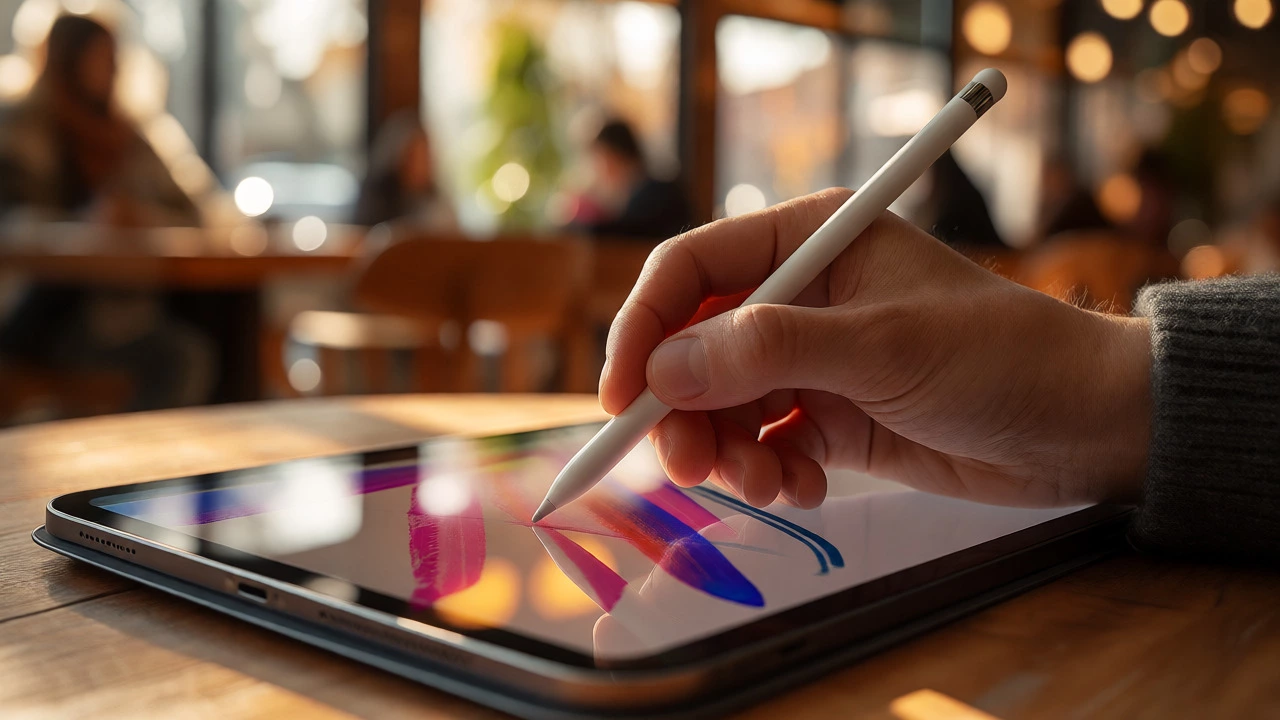
If you value portability and simplicity above all else, a standalone tablet is likely your best friend. For years, the iPad Pro has been the undisputed king here. With its M-series chips, it handles massive layers in apps like Procreate without breaking a sweat. The Apple Pencil provides near-zero latency, making strokes feel immediate.
But don’t sleep on the competition. Samsung’s Galaxy Tab S series has closed the gap significantly. If you’re an Android user or prefer software like Clip Studio Paint or Krita (which run natively on Android now), a high-end Samsung tablet offers similar power with more file-system freedom. You can plug in a USB drive directly; try doing that easily on an iPad.
Who this is for: Sketchers, illustrators who work on trains or planes, and beginners who want a low-friction entry point. If you hate managing drivers and cables, this is your lane.
The Industry Standard: Pen Displays (Cintiqs & XP-Pens)
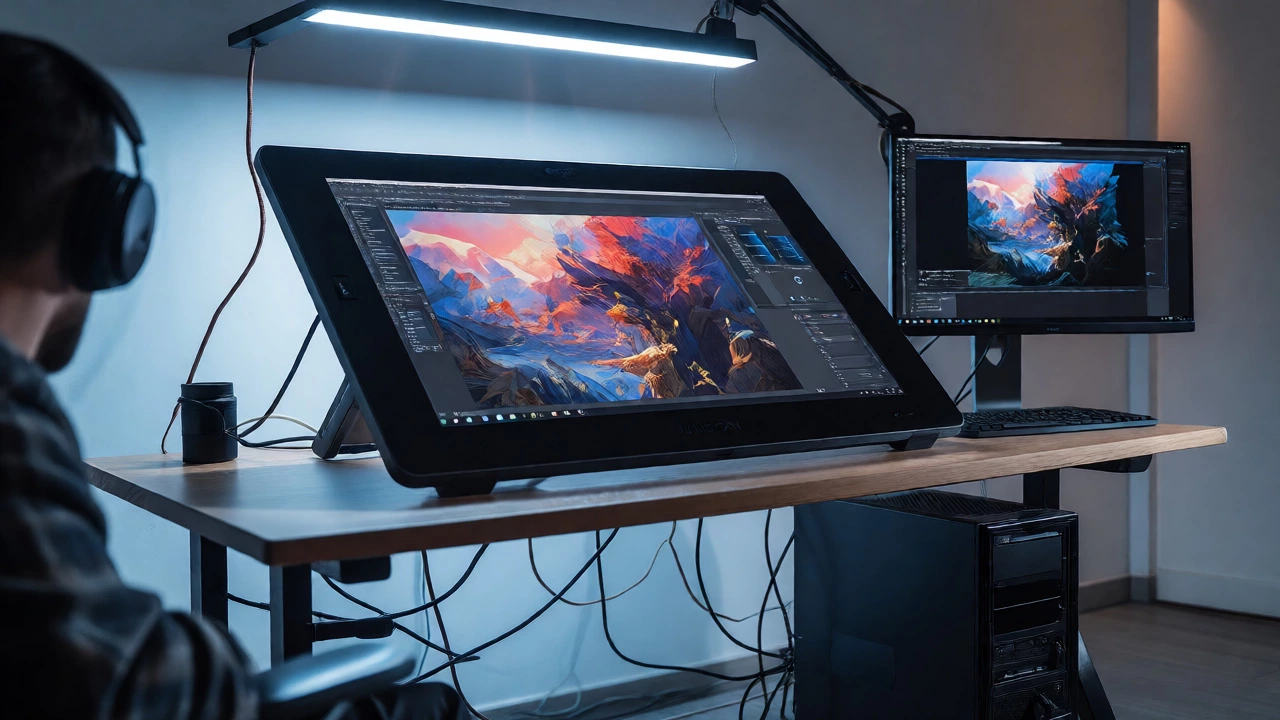
When you need screen real estate and color accuracy that rivals professional monitors, you look at pen displays. These are essentially large monitors you draw on. The Wacom Cintiq line remains the benchmark for build quality and pressure sensitivity. However, by 2026, brands like XP-Pen and Huion have flooded the market with 4K options at half the price.
The biggest advantage here is integration. You’re using full desktop software like Adobe Photoshop or Blender. No app limitations, no export hassles. The downside? Cable management. You’ll need HDMI and USB-C connections running to your computer. It ties you to a desk. Also, watch out for parallax-the slight visual gap between where the pen tip touches and where the line appears. High-end models minimize this, but cheaper ones still suffer from it.
Who this is for: Professional concept artists, comic book creators, and anyone needing precise color grading for print-ready work.
The Classic Workhorse: Non-Screen Pen Tablets
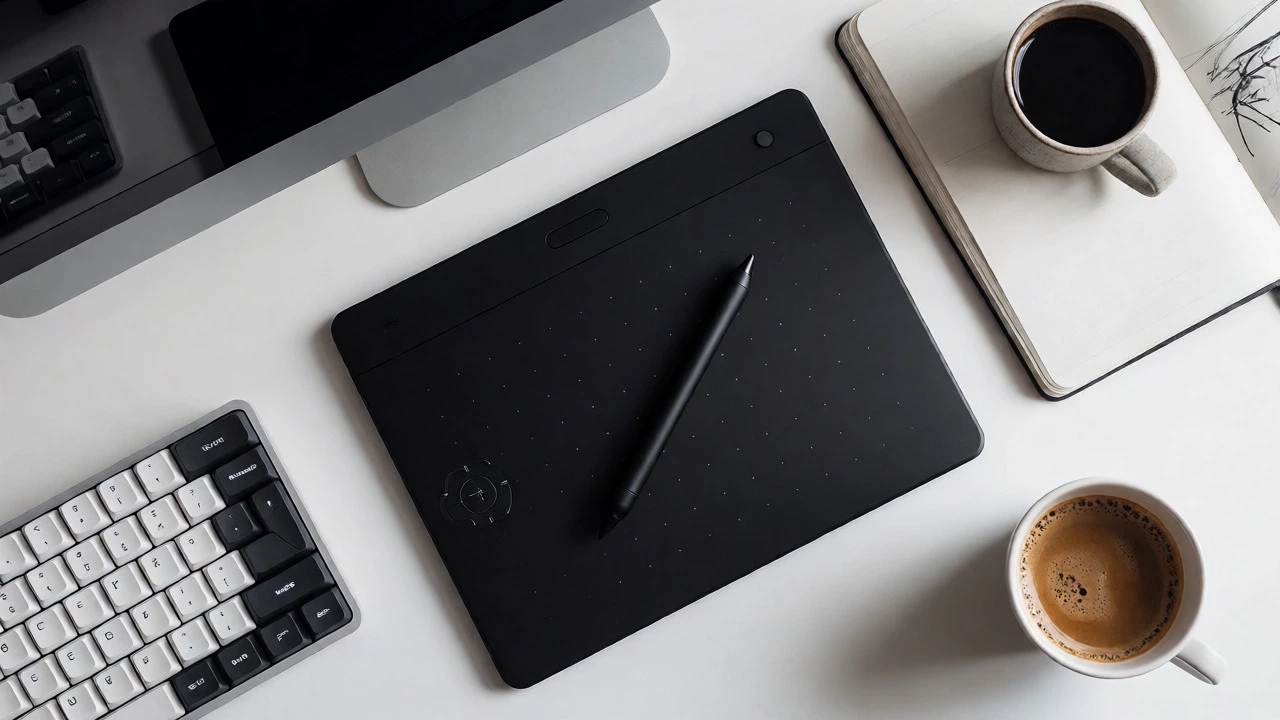
Yes, they still exist, and yes, they’re excellent. A non-screen pen tablet looks like a matte slab connected to your PC via USB. You draw on the pad while looking at your separate monitor. It sounds awkward, but many pros swear by it because it encourages better posture. You aren’t hunched over a small screen; you’re sitting back, looking at a large display.
Devices like the Wacom Intuos are durable, cheap, and portable. They don’t require external power sources beyond the USB connection. The learning curve involves training your hand-eye coordination, but once it clicks, you gain speed. Plus, if your primary monitor dies, you can keep working on any other screen. It’s resilient hardware.
Who this is for: Budget-conscious students, writers who do occasional sketching, and professionals who already own a high-quality color-calibrated monitor.
Comparing the Top Contenders
To make this decision easier, let’s look at the key attributes side-by-side. Note that prices fluctuate based on sales and region, so treat these as general tiers rather than fixed costs.
| Feature | iPad Pro + Pencil | Wacom Cintiq / XP-Pen | Wacom Intuos (Non-Screen) |
|---|---|---|---|
| Portability | Excellent (All-in-one) | Poor (Needs PC/Laptop) | High (Needs PC/Laptop) |
| Software Freedom | Limited (App Store) | Total (Desktop OS) | Total (Desktop OS) |
| Color Accuracy | Very High | Professional Grade | N/A (Uses Monitor) |
| Price Range | $800 - $1,500+ | $300 - $2,500+ | $50 - $300 |
| Learning Curve | Low | Medium | Medium-High |
Key Specs That Actually Matter
Marketing teams love throwing numbers around, but only a few specs impact your daily experience. Ignore the gigahertz count unless you’re doing heavy 3D rendering. Focus on these instead:
- Pressure Levels: Most modern devices offer 8,192 levels. Anything less is outdated. More levels mean smoother transitions from light hairlines to bold strokes.
- Parallax: This is the distance between the glass surface and the LCD panel. Lower is better. Full lamination eliminates it entirely, making drawing feel natural.
- Tilt Recognition: Essential for shading. If your device doesn’t support tilt, you’ll struggle to create realistic pencil or charcoal effects without manually changing brush angles constantly.
- Refresh Rate: Look for 120Hz or higher. A 60Hz screen can feel sluggish when moving fast lines, causing your brain to lag behind your hand.
Budgeting Realistically: Hidden Costs
Buying the device is just step one. Factor in the accessories. For iPads, you need a matte screen protector (like Paperlike) to add tooth to the glass, otherwise, your pen will slide too much. For pen displays, you might need a long-reach USB-C hub if your laptop lacks ports. Don’t forget software subscriptions. Adobe Creative Cloud costs roughly $20-$50 USD per month depending on the plan. Procreate is a one-time purchase, which saves money long-term if you stick to iOS.
If you’re starting out, resist the urge to buy the top-tier model immediately. Start with a mid-range option. Upgrade when you hit a specific limitation-like needing more RAM for larger files or better color gamut for client work. Technology moves fast; buying the absolute newest model often means paying a premium for marginal gains.
Workflow Integration Tips
Your device choice affects your entire creative pipeline. If you choose an iPad, ensure your cloud storage setup is robust. iCloud works well within the Apple ecosystem, but sharing files with Windows users can be clunky. Use formats like PSD or PDF carefully to preserve layers.
If you go with a pen display or tablet, invest in a good monitor calibrator. Your eyes lie. What looks like perfect white on an uncalibrated screen might print yellow. Regular calibration ensures what you see is what you get. Also, organize your workspace. Keep the tablet angled correctly relative to your keyboard shortcuts. Reaching across the screen to hit 'Ctrl+Z' hundreds of times a day causes wrist strain.
Do I need a computer if I buy an iPad?
No, not for drawing. The iPad runs standalone apps like Procreate or Affinity Designer. However, if you need advanced features like video editing or complex vector manipulation, you might eventually want a desktop companion. But for pure illustration, the iPad is self-sufficient.
Is a screenless tablet harder to use than a pen display?
Initially, yes. Drawing on a pad while looking at a separate screen requires hand-eye coordination adaptation. It usually takes about a week of practice to feel natural. Once adapted, many artists find it faster and healthier for their necks than hunching over a screen.
Which brand is better: Wacom or XP-Pen?
Wacom is known for superior build quality, driver stability, and resale value. XP-Pen offers better bang-for-buck, especially in the mid-range. If you rely on your gear for a living and need reliability under heavy load, Wacom is safer. If you’re a hobbyist or student, XP-Pen delivers 90% of the performance for 50% of the cost.
Can I use a smartphone for serious digital art?
You can, but it’s limited. Screen size restricts detail work and layer management. It’s great for quick sketches or thumbnails, but fine-tuning a complex piece on a 6-inch screen is frustrating. Save smartphones for inspiration capture, not final production.
How important is color gamut coverage?
Critical for professional work. Look for devices covering 99% sRGB at minimum. For print work, aim for wide-gamut displays (like DCI-P3 or Adobe RGB). Consumer tablets often oversaturate colors, which can lead to muddy prints if you don’t adjust your settings accordingly.
Ultimately, the best device is the one you’ll actually pick up every day. If a bulky Cintiq sits in a closet because it’s annoying to set up, it’s worth less than a lightweight iPad you carry everywhere. Test the weight, check the return policy, and prioritize ergonomics over raw specs. Your art deserves a tool that disappears into your hand, letting your creativity flow uninterrupted.